
English · 中文 · Documentation · Download: Windows · macOS · Linux · Web · Android
Connect once. Ready whenever you are.
Continue using your DeepSeek Harness instance from a phone, computer, or browser.
Return to the same Harness session from whichever device is with you. Harness keeps running on your work computer, with the same workspaces, tools, and project setup. Remote is simply another window into that environment.
Features
- Continue active sessions and review their latest progress from another device
- Send new instructions, change direction, and use image prompts with Harness
dsh-v0.1.1-rc.2 - Answer questions and permission requests from clients with live conversation controls
- Open workspaces from another authorized computer on the same account
- Reuse the native Harness interface instead of maintaining a separate desktop conversation UI
- Preview remote files between two Harness installations with the optional
dsh-file-viewerplugin - The Harness Host does not need a public listening port. Connect securely from anywhere with internet access over a bidirectional end-to-end encrypted channel
Install
Path A: DSH Desktop
Install DSH Desktop on Windows, macOS, or Linux. Remote is included and enabled by default, so no separate plugin installation is required.
Path B: Existing DSH installation
Install the exact npm version for the web profile:
dsh plugin --profile web add ds-harness-remote@0.3.30
Restart Harness after installation.
Quick start
- Open Remote from the Harness sidebar.
- Sign in with a GitHub or Zhihu QR code, or use your account and password. New password accounts can register through Remote Web; the site shows the current invitation requirements.
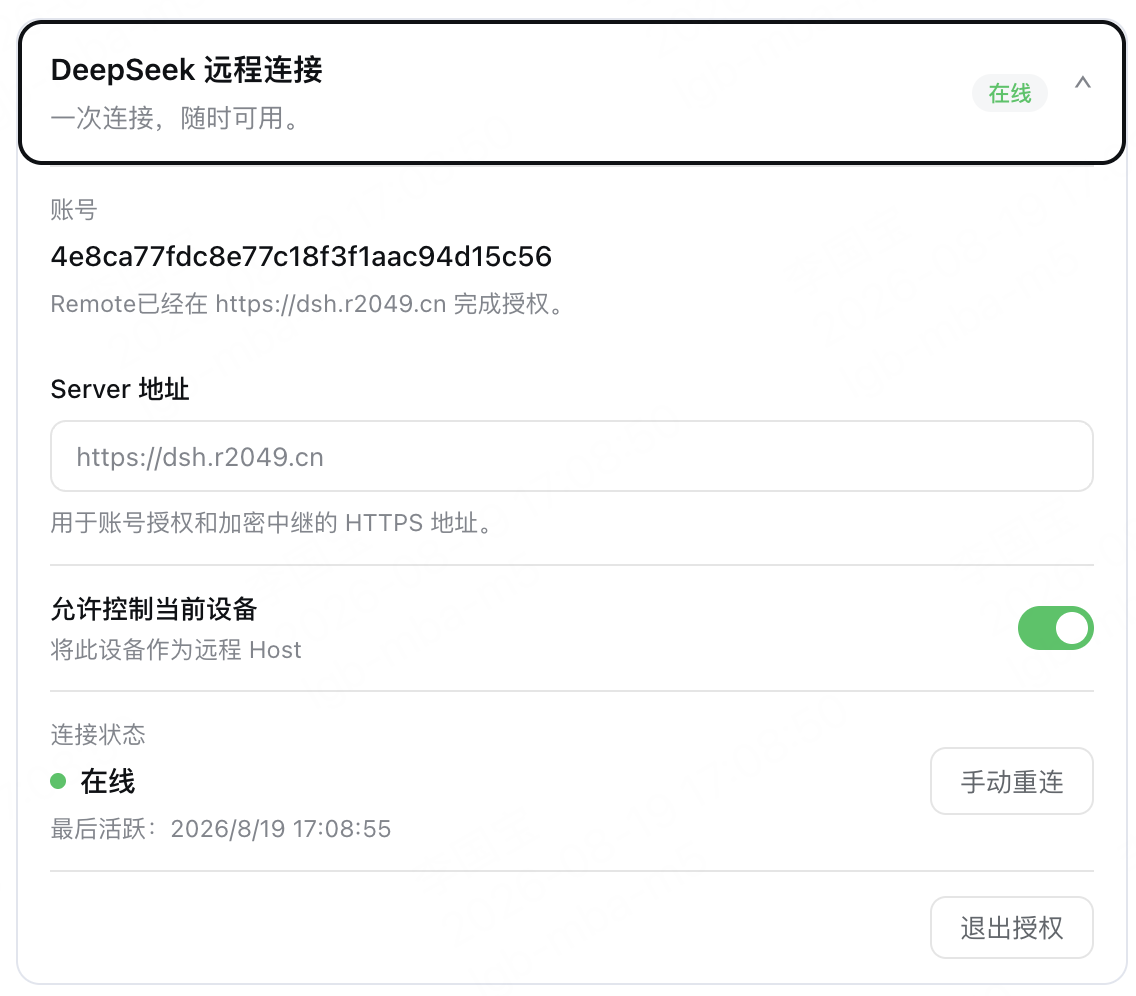
- Enable remote control for the current computer.
- On another device, open DSH Desktop, Remote Web, or the Android client and sign in to the same account.
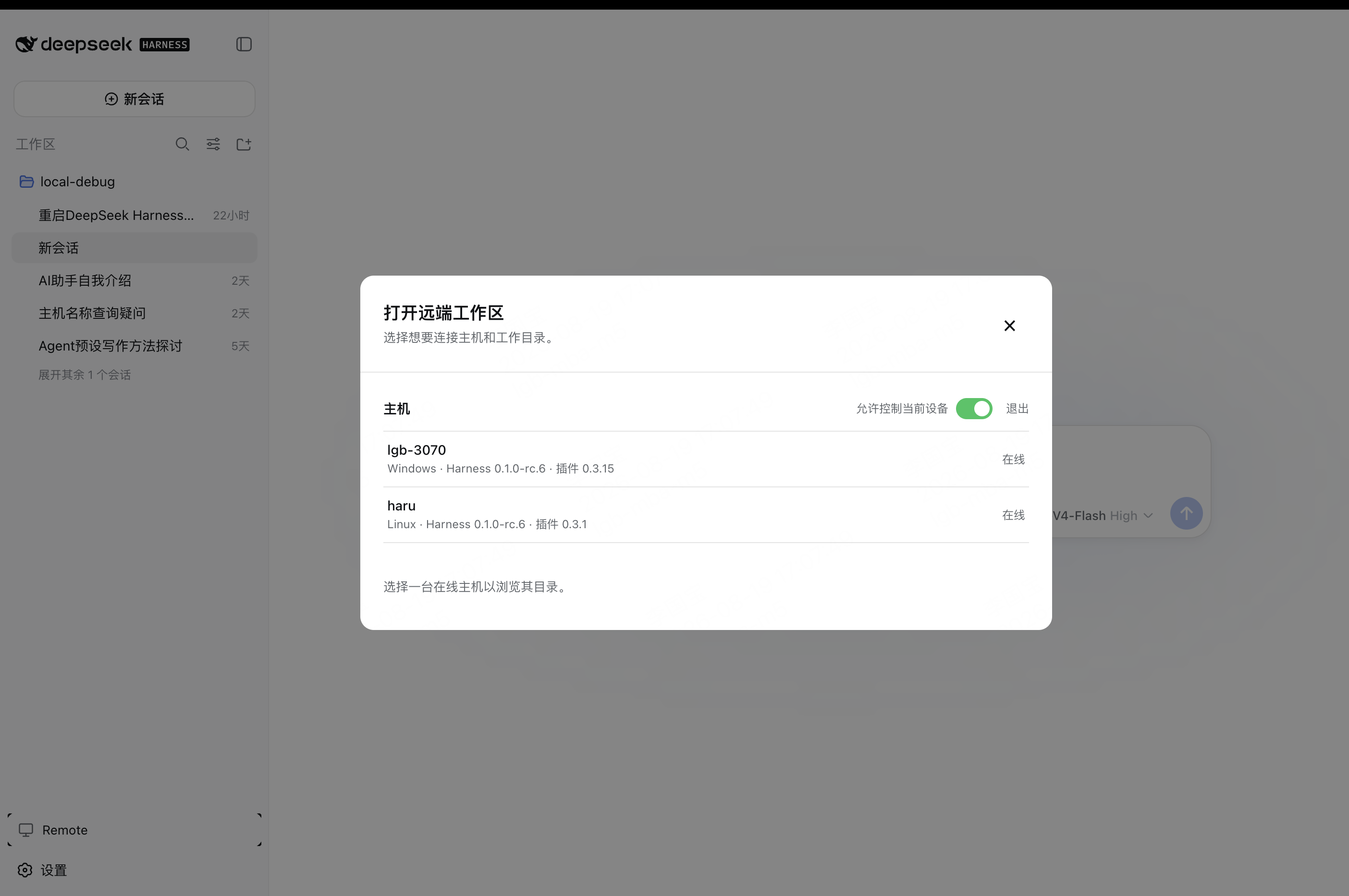
- Select the online Host, then choose an existing workspace or browse remote directories to open one.
The public service currently uses the hosted Remote relay. A supported self-hosted relay option is not available yet.
Screenshots
Desktop
Enable Allow control of this device in Remote settings to make the current computer available as a Host.
On another computer, select an online Host and open one of its workspaces.
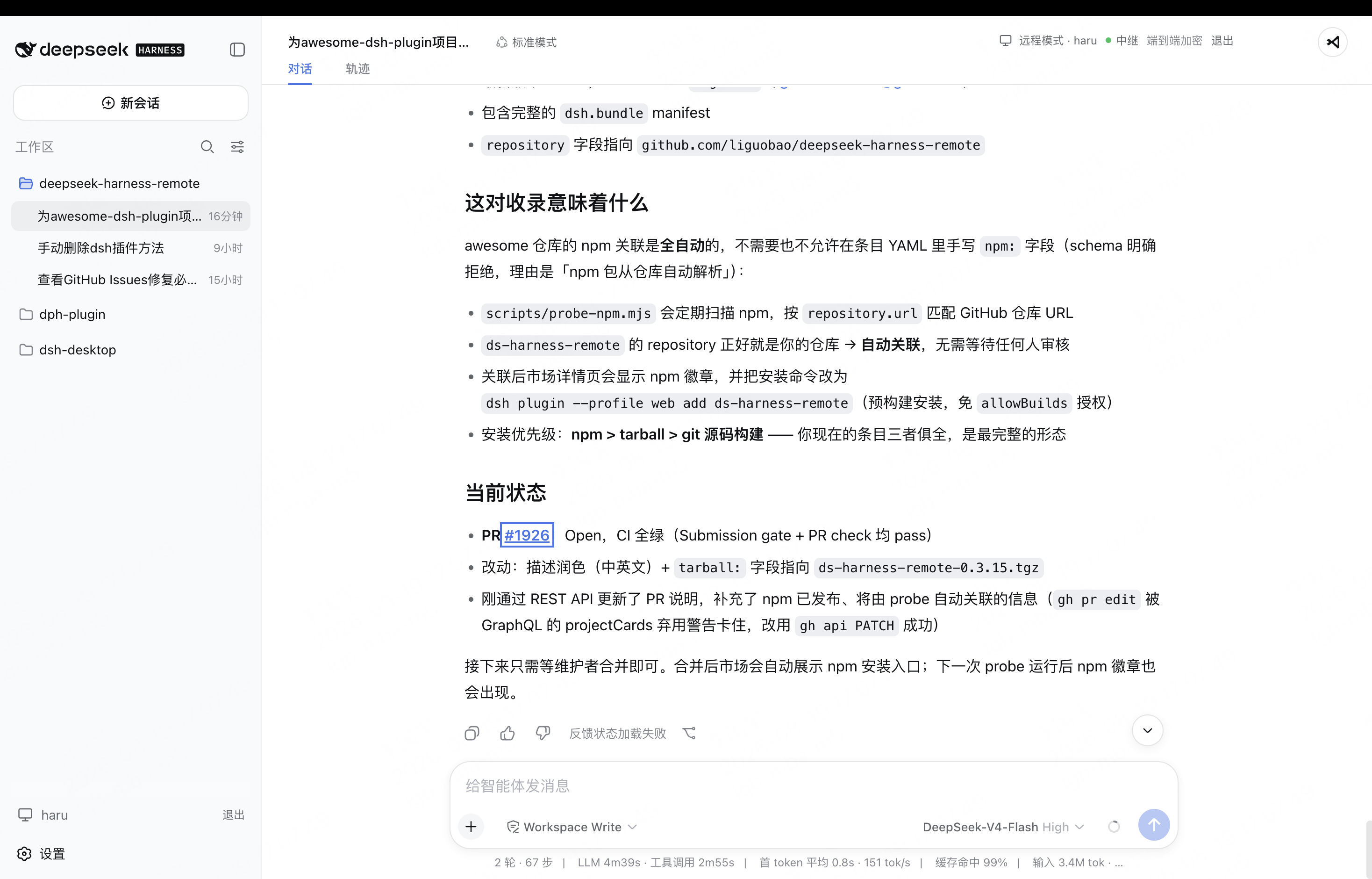
The workspace opens in the native Harness interface, with the active Host and encrypted connection status shown in the header.
Android
Download the latest Android APK from GitHub Releases.
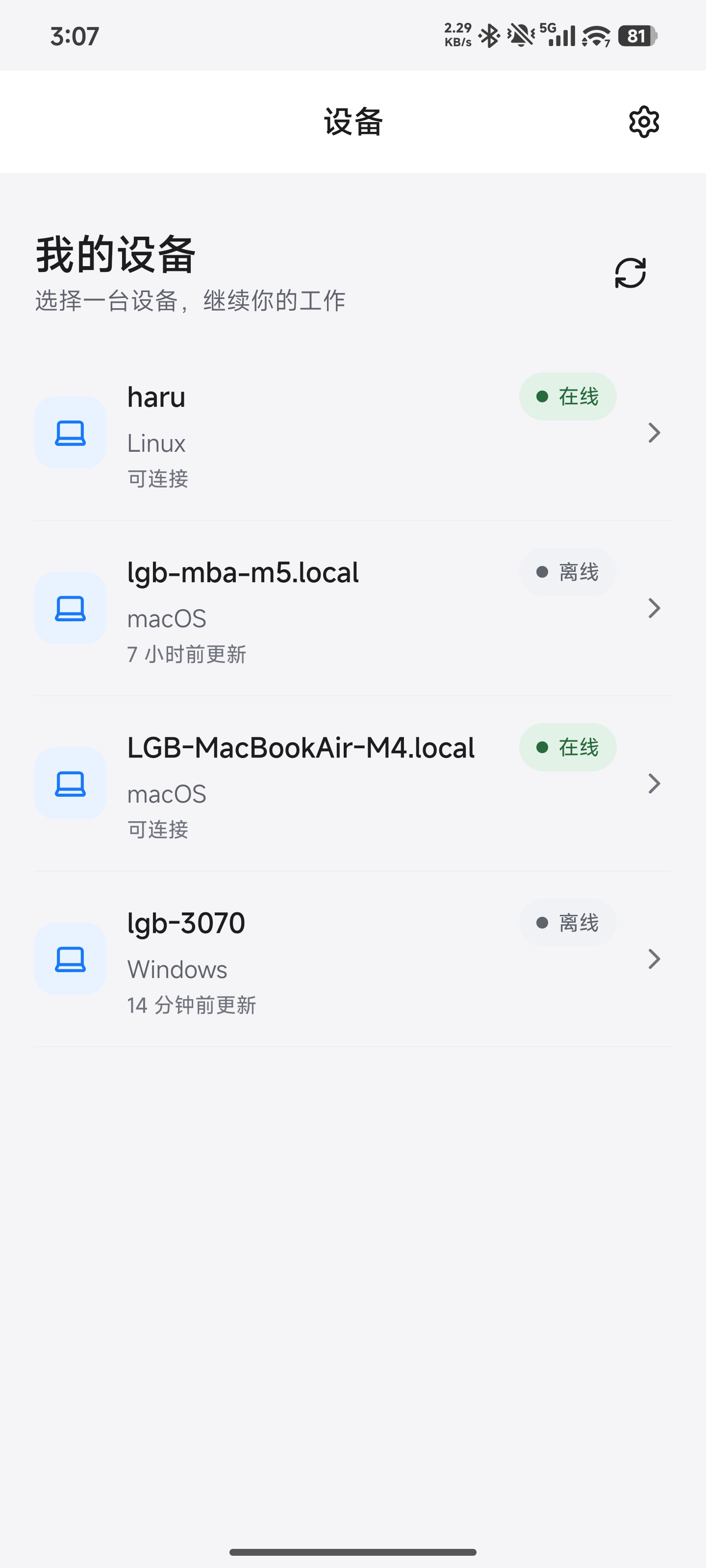
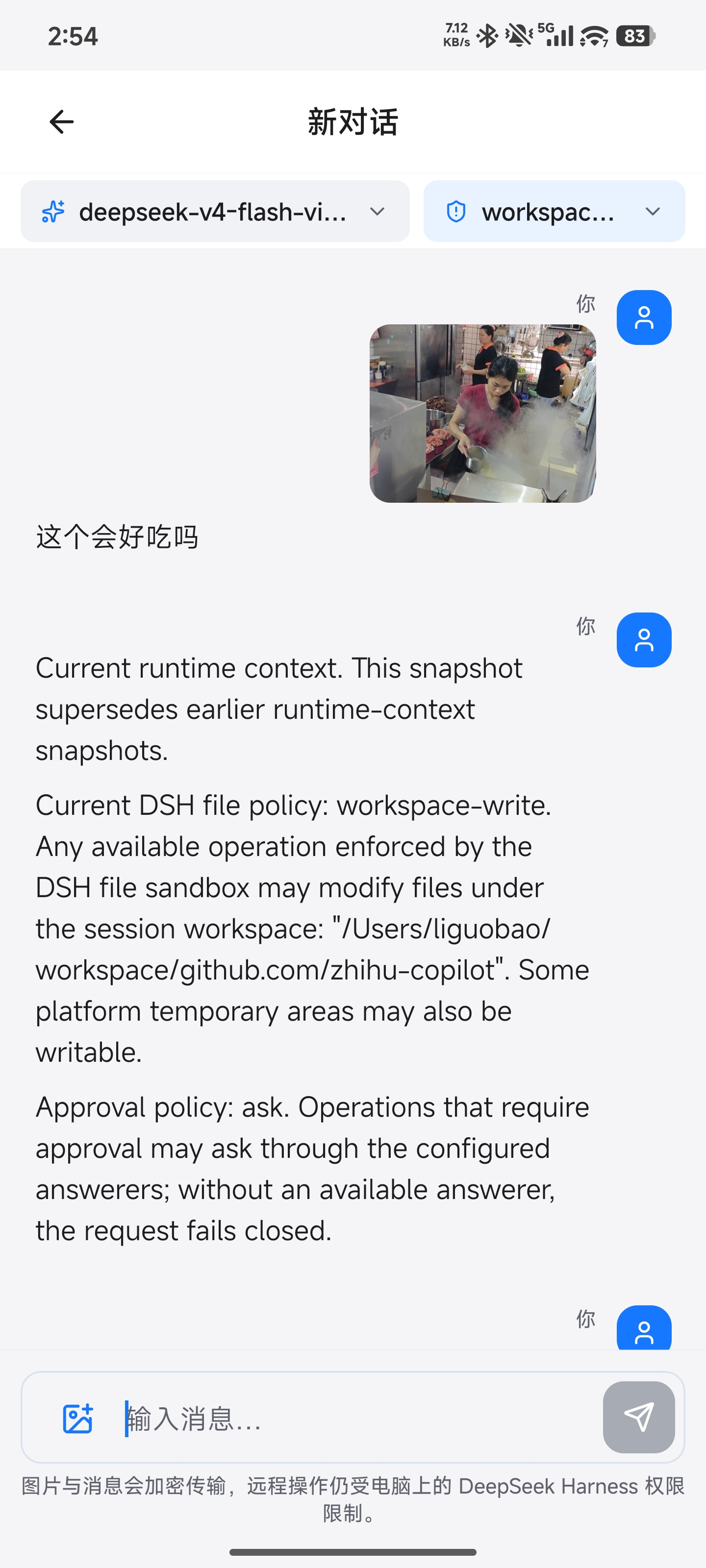
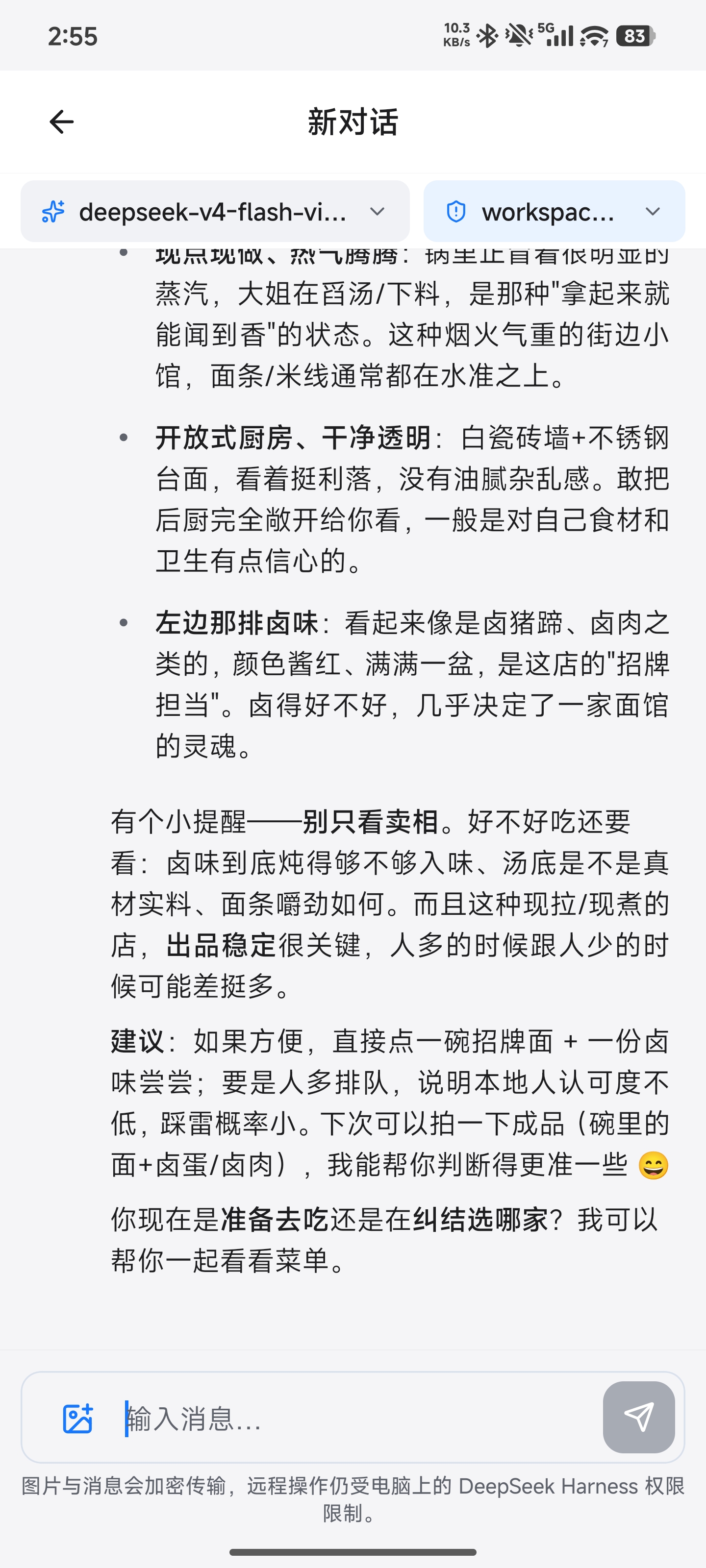
Sign in to the Android client with your existing account, select an available computer, open a workspace, and continue the conversation with text or image prompts.
How it works
DSH Desktop / Remote Web / Android
  ↔ authenticated, end-to-end encrypted channel
Remote Plugin on the Host
  ↔ allowlisted native Harness API
Harness sessions, tools, and workspaces
The Harness Host does not need a public listening port. You can connect from anywhere with internet access, and Remote communicates over a bidirectional end-to-end encrypted channel. It switches the client to the selected Host's native Harness API, so the original workspace, tools, and permission flow remain on that computer. Every settings namespace currently registered by the Host can also be configured remotely through the official Harness settings API. Credential values remain write-only, and Host-local document/open actions are never exposed.
Security
- Session traffic is end-to-end encrypted. The service relays ciphertext without storing session plaintext or device private keys.
- Server membership and the Host's locally pinned peer identity must both authorize a connection.
- Remote does not expose a direct shell, PTY, general tool RPC, or remote desktop. Harness tools may still modify files or run commands on the Host under Harness's normal permission controls.
- The workspace picker lists folders only and returns bounded, read-only directory metadata.
- Optional File Viewer access is limited to authenticated, encrypted range reads and continues to enforce provider root and locator authorization.
- Remote file preview cannot write, delete, upload, execute, or open a path in an external application.
- Removing a device revokes its credentials, membership, and active Remote connections.
Compatibility
Compatible with DeepSeek Harness dsh-v0.1.1-rc.2.
Documentation
Links
- Community acknowledgement: this project recognizes and supports the LINUX DO community.
- Related project by the author: Cyber Liu Kanshan
Project status and trademarks
This is an independent community project and is not an official DeepSeek product. DeepSeek and related names and marks belong to their respective owners.